
Upload your image.
Drop in a JPG, PNG, or WebP, or paste a screenshot with Ctrl+V.
Pixelate a whole photo or only the part you want to hide. Drag a box over a face, a name, or a license plate, choose how big the blocks are, and download. Free, no signup, no watermark, and your image stays in your browser the whole time.
Drag over anything you want to hide. Each new area uses the current shape and settings. Select an existing area below to change or remove it. Undo: Ctrl/⌘Z. Redo: Ctrl/⌘Shift+Z.
Preparing a sample…
Free · No signup · No watermark · Never uploaded
Drop in a JPG, PNG, or WebP, or paste a screenshot with Ctrl+V.
Choose Select Area to hide only part of the picture.
Drag a rectangle or ellipse, or paint over it with the brush.
Bigger blocks hide more. Save as JPG, PNG, or WebP.
Most of the time you only need to hide one thing: a face in the background, a phone number in a screenshot, a house number on a door. Switch to Select Area, drag a box or ellipse over it, and only that spot turns into blocks. Add as many areas as you need, and the rest of the photo stays as sharp as it was.
Select an Area to Pixelate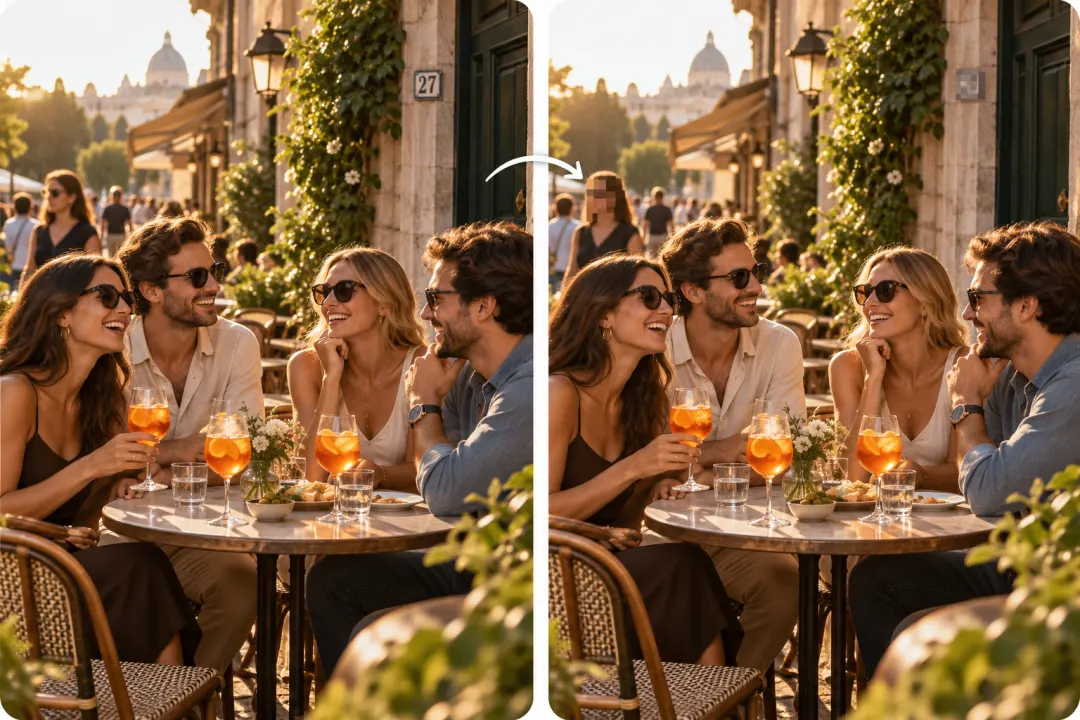
Not everything fits in a box. A name tag on a tilted shirt, a tattoo, or a line of text that curves around a mug is easier to cover by hand. Brush over it, and the pixels follow your stroke. Undo a stroke if you slip.
Use the Brush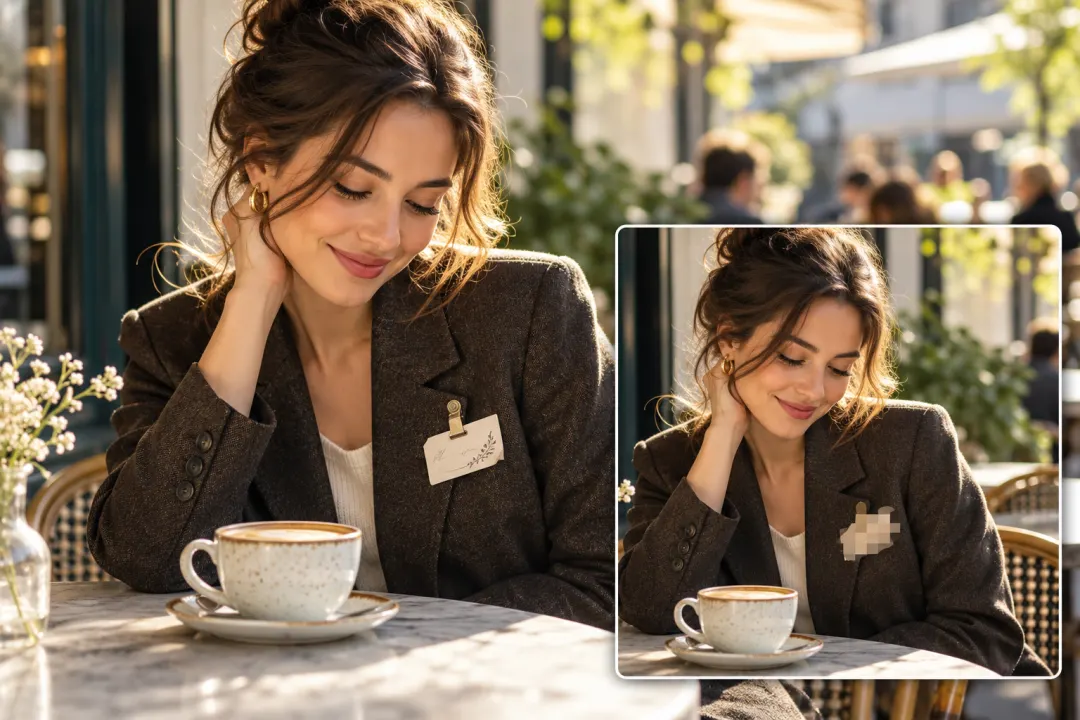
Small blocks soften a detail while the shape still reads. Huge blocks hide more detail, but pixelation is not a guarantee of privacy. Drag the Block size slider and watch the preview change, so you can stop at the exact point where the face or text can no longer be read.
Set the Block Size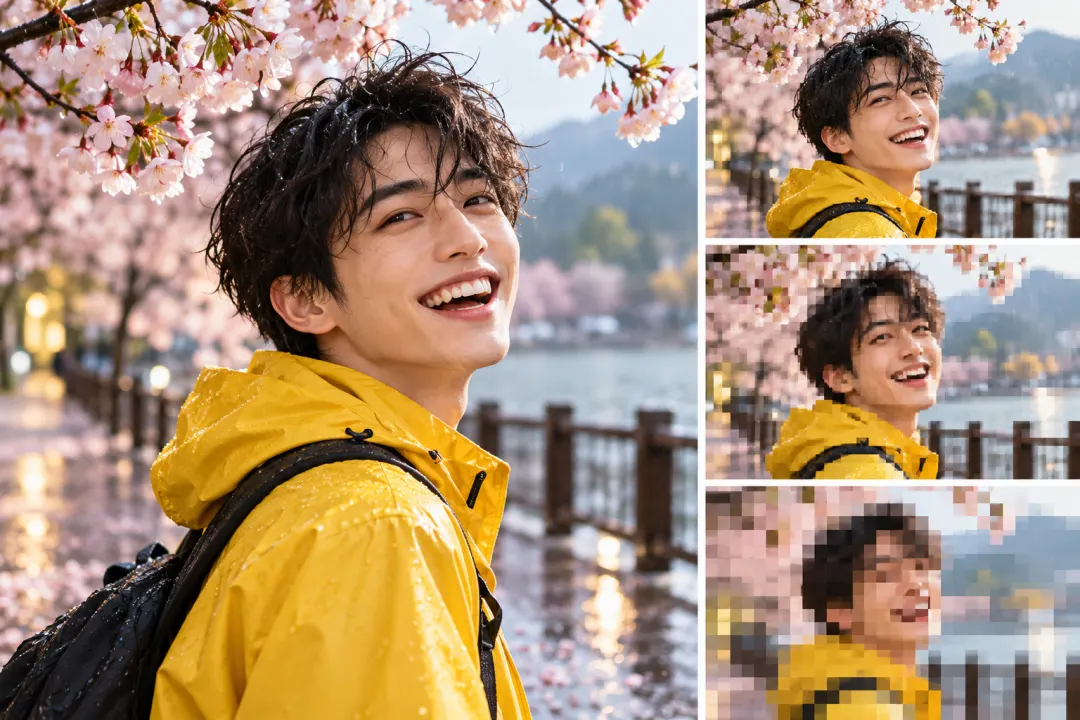
Pixelation hides most details well, but small blocks over short text can sometimes be guessed back. For passwords, card numbers, addresses, or anything you really cannot leak, switch the area from Pixelate to Solid Block. It paints over the original pixels completely, so the covered pixels are absent from the exported image. Keep the original file private.
Add a Solid Block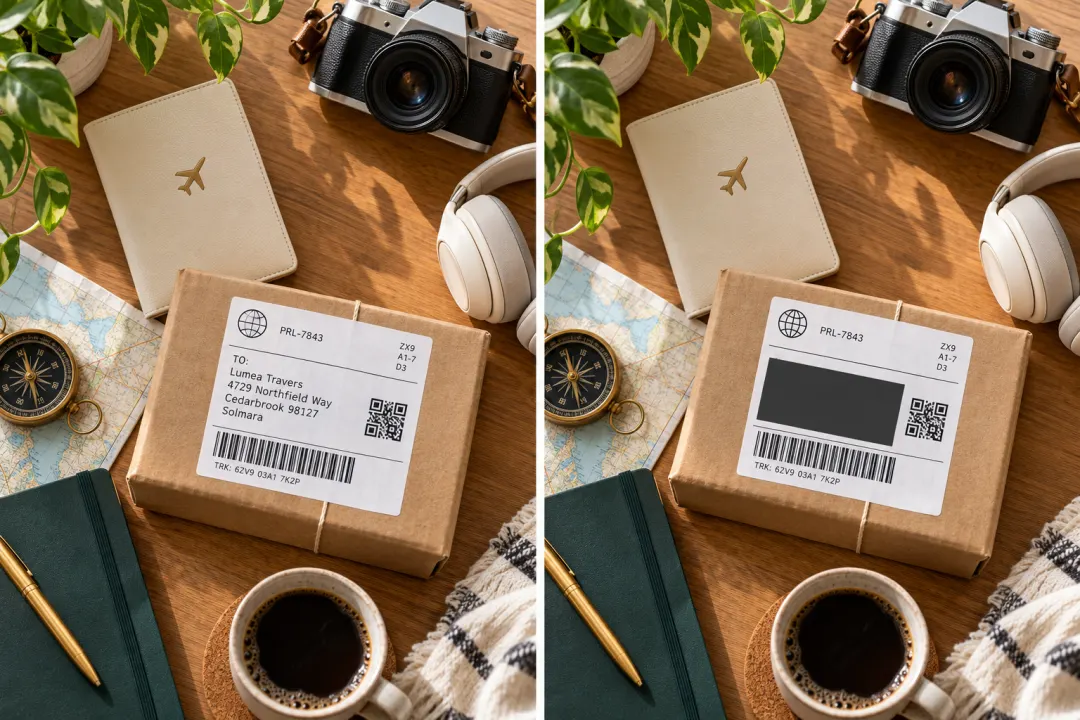
Pixelate is not only for hiding things. Use Whole Image mode with a large block size, and any photo turns into a chunky, old-game look that works as a profile picture, a poster, or a meme.
Pixelate the Whole Image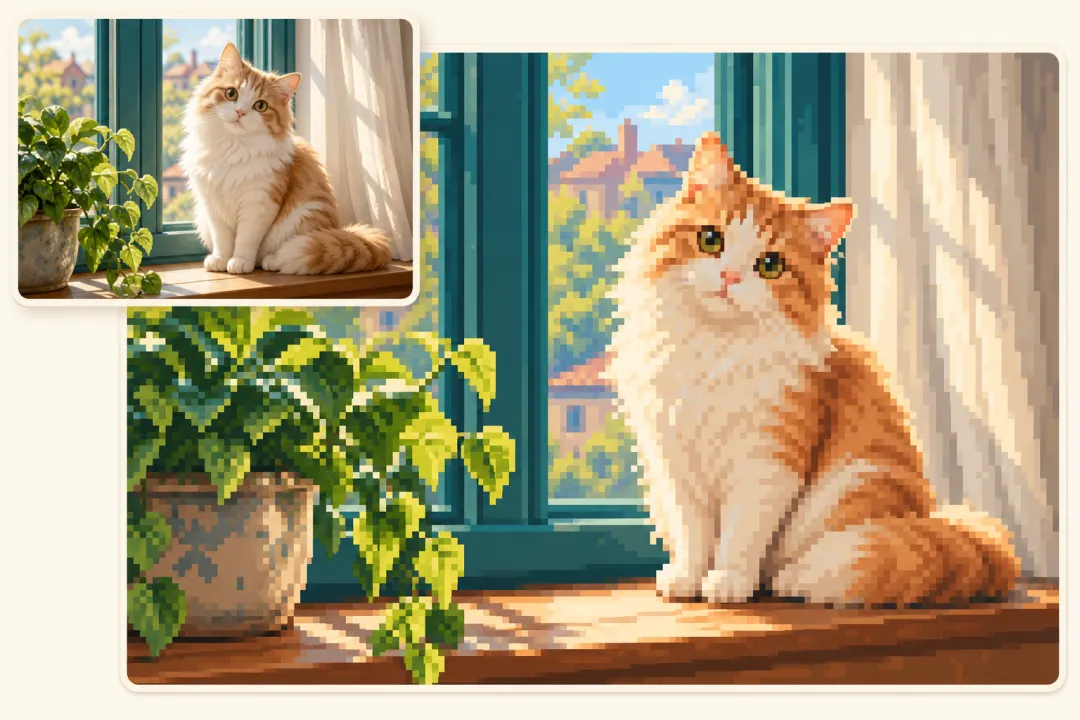
You want to post a party or street photo, but not everyone in it agreed to be online. Pixelate the faces in the back and keep your friends clear.
A chat screenshot, a receipt, or an order email often shows names, phone numbers, or emails. Box them out before you post the screenshot anywhere.
Selling a car or showing off a new place? Pixelate the plate or the address so the photo cannot be traced back to you.
Parents often hide their children's faces in school or sports photos before sharing. Pixelate the faces and keep the moment.
A heavily pixelated selfie makes a fun, retro avatar that still looks like you from far away.
Hide as many faces and names as you need, free.
Open the page and start pixelating. Nothing to sign up for.
Your download is just your image, with no logo in the corner.
The pixelation happens in your own browser. Nothing you censor leaves your device.
Mark every face, name, and number in one pass, then download one image.
Covered the wrong spot? Undo it or clear all areas and start again.
Sometimes. Small blocks over short, predictable text, like a number in a known font, can be guessed with special tools. Large blocks are much harder to reverse, and a Solid Block replaces the covered pixels with one flat color in the exported file. Keep the unedited original private, and cover the entire sensitive area.
Both hide details, but pixelation usually hides small text more reliably than a light blur. For anything truly sensitive, a Solid Block is the safest choice of the three.
Switch to Select Area, pick Ellipse, and drag it over the face. Raise the Block size until the face can no longer be recognized.
Yes. Take the screenshot, open this page in your mobile browser, upload it, and use your finger to drag a box or brush over the part you want to hide.
No. The width and height stay the same. Only the areas you mark change, and the rest of the image keeps its original detail.
Yes. Save the result as PNG and the transparent parts stay transparent.
You can upload JPG, PNG, and WebP, and download as JPG, PNG, or WebP.
Use the low quality image maker instead. It mixes blur, compression, and noise for a worn-out look rather than clean square blocks.
Use censor image to find and blur faces locally, or hide private text with a solid block.
Upload a photo or screenshot, mark the parts you want to hide, and download it in a few seconds. No account, no watermark, and nothing leaves your browser.
Start Pixelating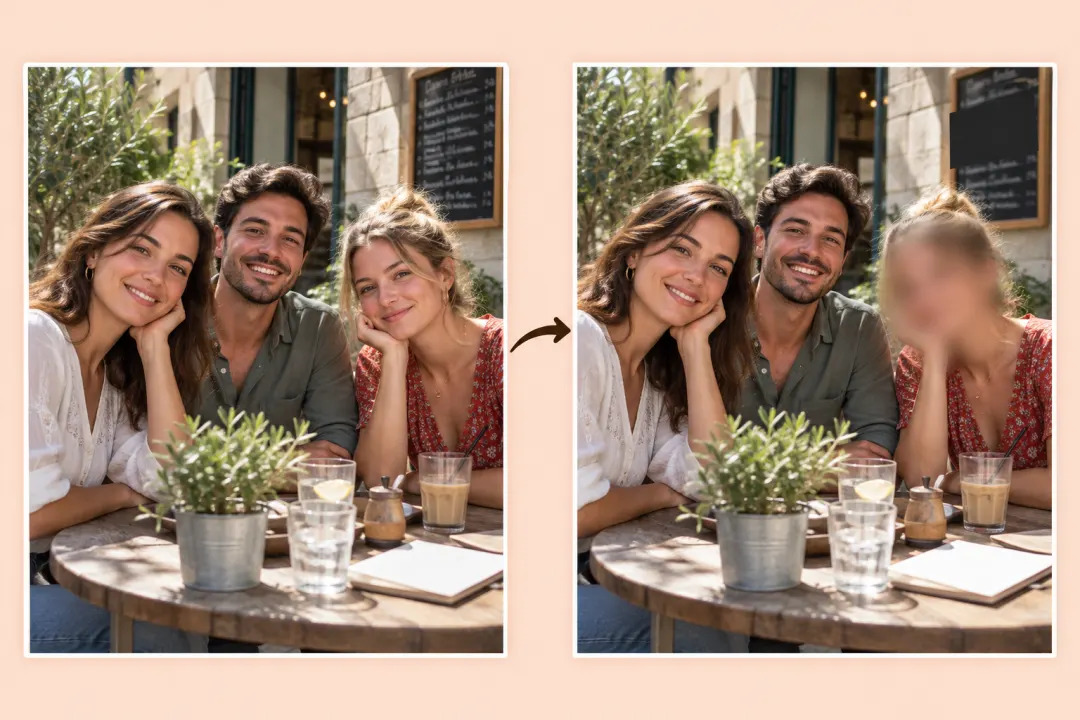
Cover faces and private details with blur, pixelation, or a solid block.
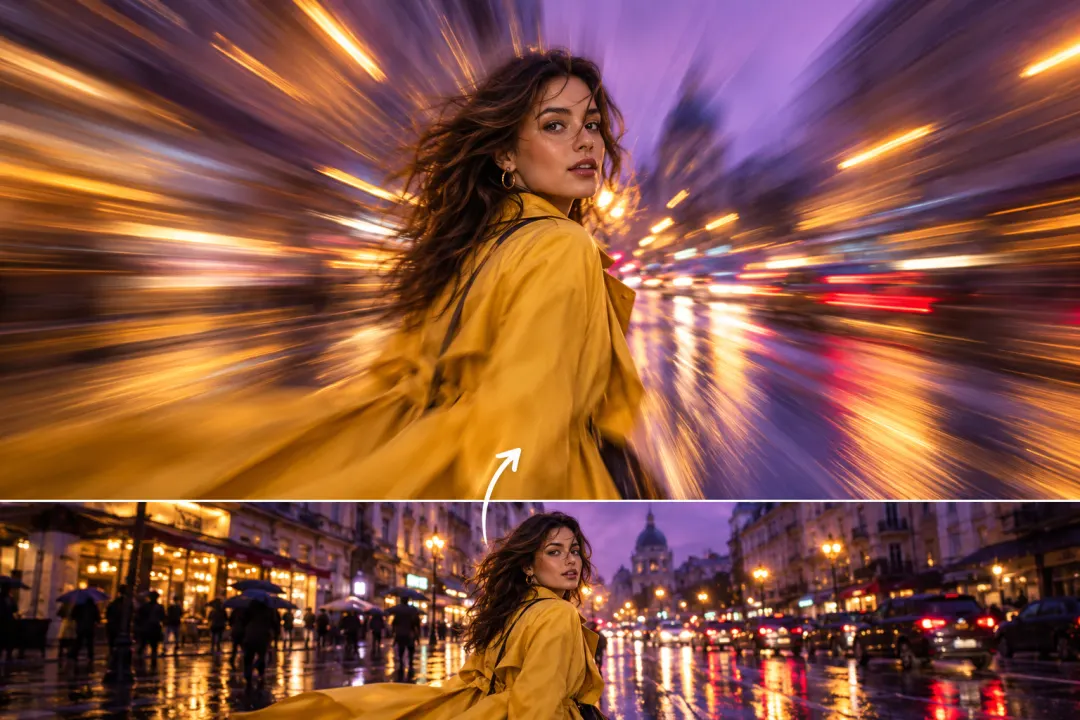
Choose soft focus, motion blur, or radial blur.

Combine small dimensions, JPEG compression, and noise in one edit.