
Turn Your Photos into Retro Pixel Art
Give outfit shots and travel portraits a retro-inspired look. Adjust the pixel width to keep your subject recognizable, then choose a limited palette for bold, simplified color.
Try it on your photo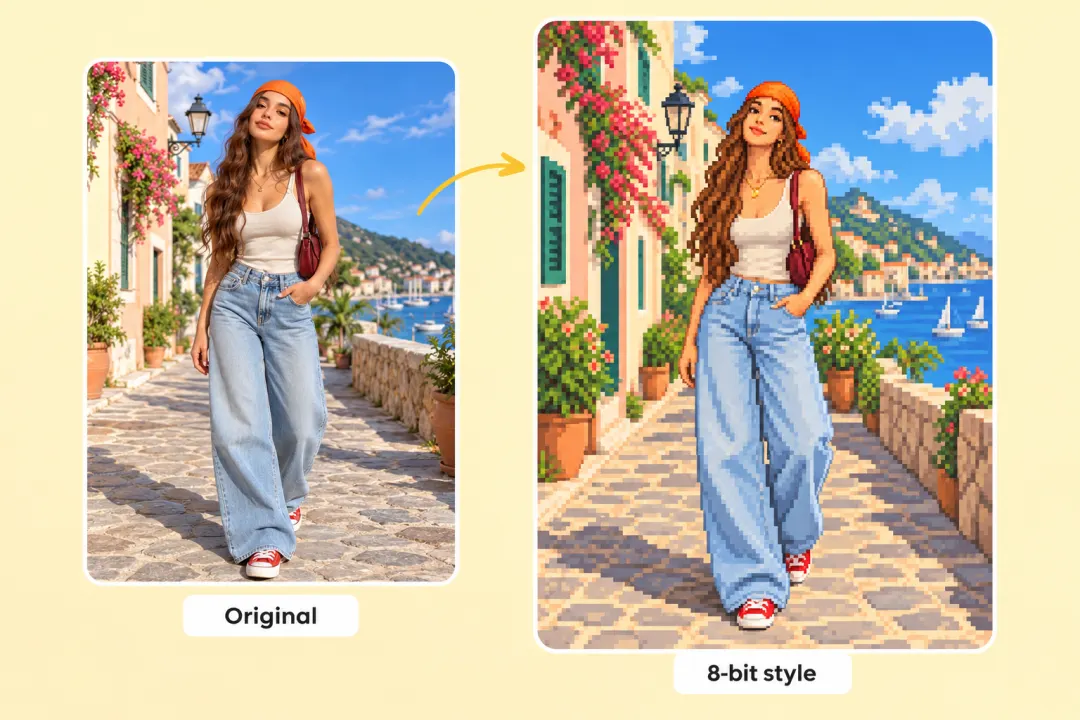
Your Photo. A Retro World.
Trade smooth gradients for bold pixels and a small palette. Turn your photo into retro-inspired pixel art in a few clicks.
Or click to browse · Ctrl/Cmd + V to paste
JPG, PNG, WEBP · Up to 10 MB · Paste with Ctrl+V / ⌘VYour photos stay on your device. Always.
 Original8-bit style
PNG keeps the exact palette and crisp pixel edges. Dither algorithm takes effect when Dithering is above 0%. Export scale enlarges each pixel without smoothing. “8-bit” describes the retro style, not an indexed file format.
Give outfit shots and travel portraits a retro-inspired look. Adjust the pixel width to keep your subject recognizable, then choose a limited palette for bold, simplified color.
Try it on your photoTry Game Boy greens for a four-tone portrait or avatar. Adjust contrast to separate light and shadow, and add dithering to suggest softer shading with the same four colors.
Try it on your photo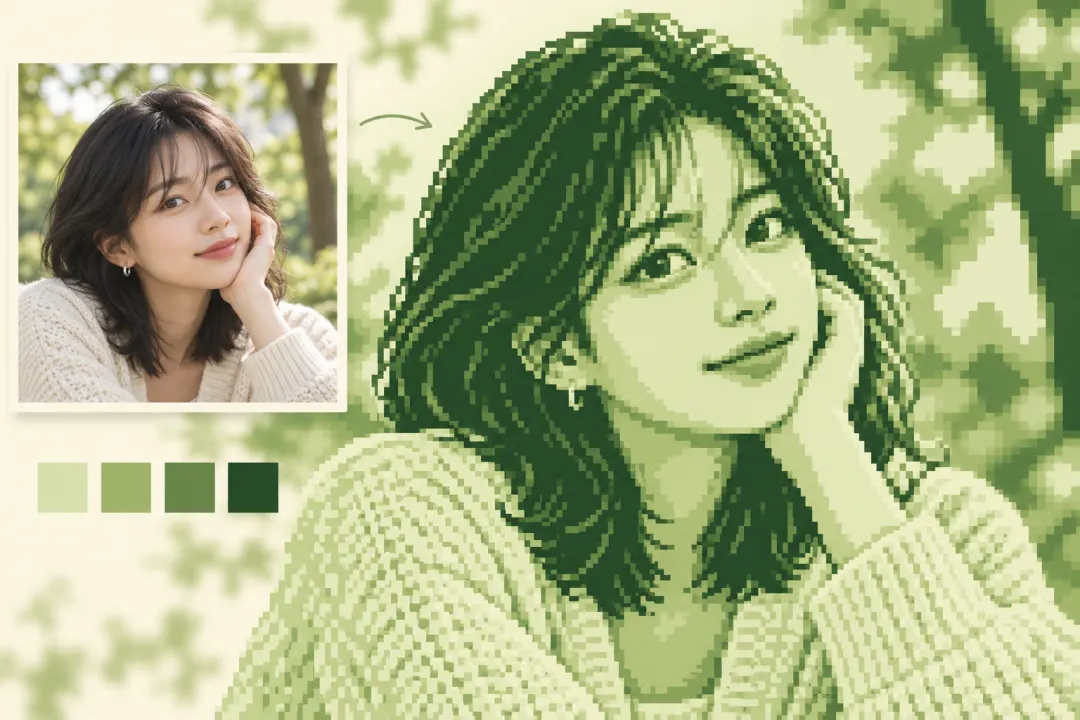
Turn coastlines, sunsets, and favorite views into retro-inspired backgrounds. Start with a scene that has clear shapes, then choose your pixel width and export scale for the size you need.
Try it on your photo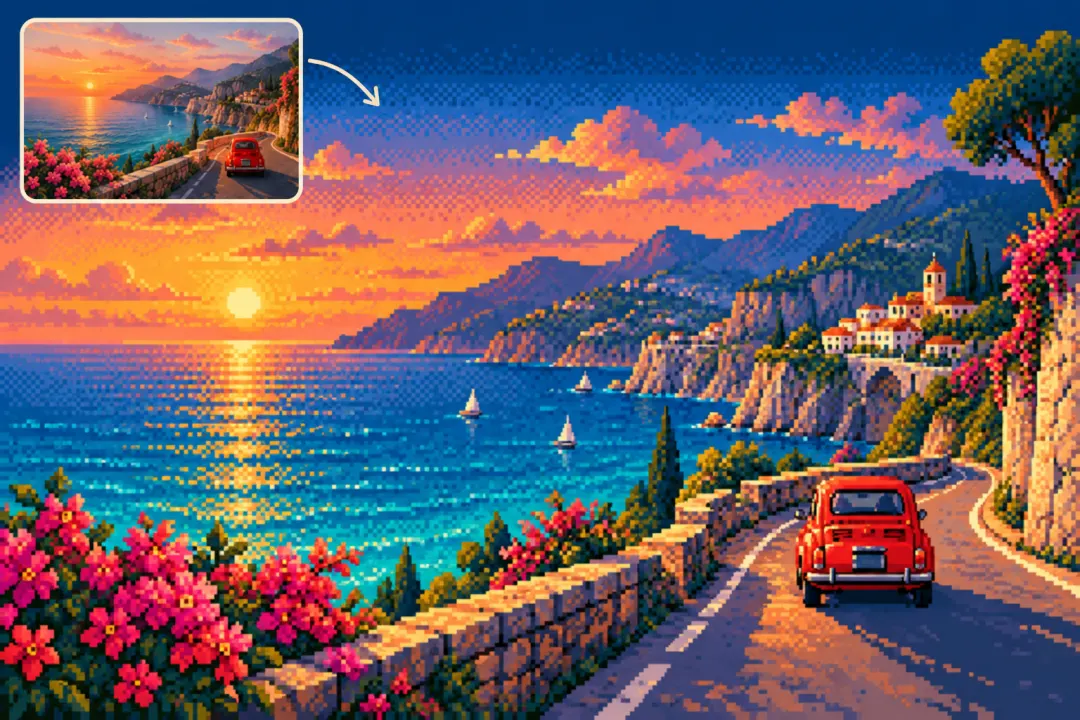
Try a controller, a favorite gadget, or another object with a recognizable outline. A simple background and clear lighting help the subject read well after reducing detail and colors.
Try it on your photo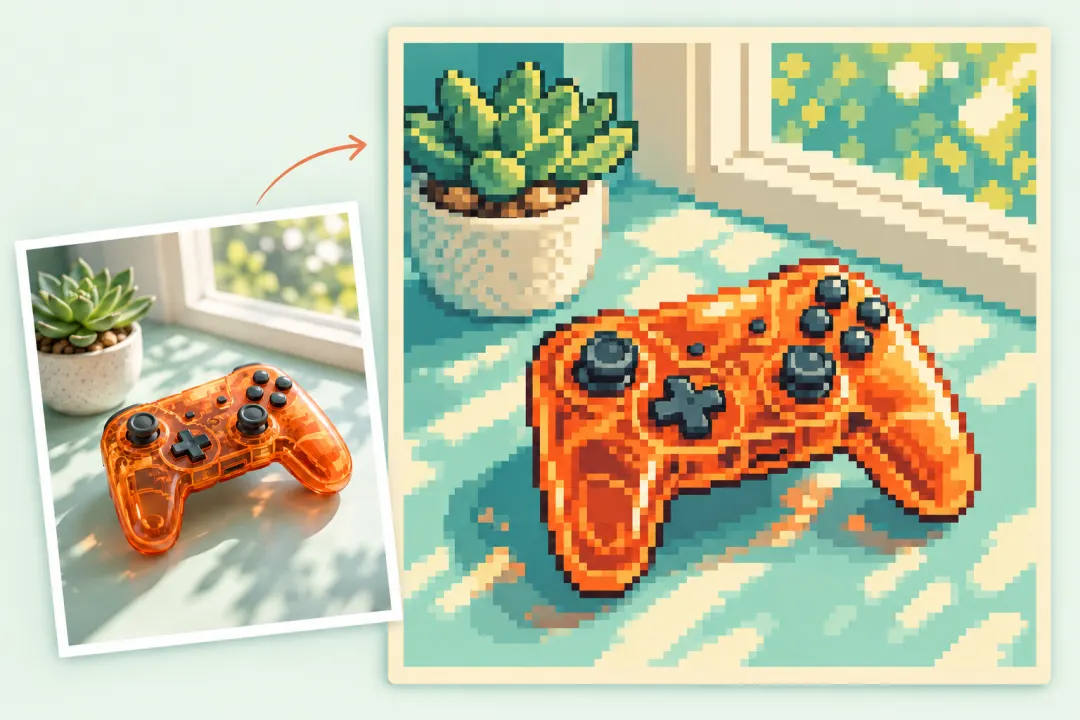
A simple pixelation filter only makes blocks larger. An image to 8-bit converter also limits which colors those blocks can use. That smaller palette is what gives retro game-inspired artwork its distinctive color relationships and simplified shading.
This tool first reduces the photo to your chosen pixel width, then maps it to the nearest colors in a fixed palette. Choose smooth downsampling for photos or nearest-neighbor sampling for existing pixel art. Add Floyd–Steinberg, Atkinson, or Bayer dithering to suggest shading with the same small set of colors. Integer export scaling enlarges the final pixels without interpolating new colors.
PICO-8 uses its familiar 16-color palette. Game Boy greens uses four green tones, while the 16-color Arcade option is a custom palette inspired by classic games.
Lower Pixel width for larger visible blocks and simpler shapes. Raise it for more detail. Export scale changes the file dimensions without changing the underlying pixel grid.
For sharp, palette-limited artwork, download PNG. WEBP and JPG may introduce colors outside the selected palette; PNG is the most reliable choice for exact colors.
Try a clear portrait or a scene with recognizable shapes.
Pick a palette, adjust pixel width and contrast, then optionally add dithering.
Choose an integer scale and download PNG to retain the exact colors and edges.
Upload your image, choose a palette such as PICO-8 or Game Boy greens, and set the pixel width. Adjust contrast or dithering, then download the retro-style result.
No. The tool creates a limited-color, retro-inspired appearance and exports a regular image. It does not write an indexed PNG, a ROM, a game-ready tileset, or an emulator-compatible asset format.
Pixelation reduces spatial detail by creating larger blocks. This converter also maps every visible pixel to a fixed color palette, changing the colors as well as the pixel grid.
PICO-8 has 16 colors, Game Boy greens has four, and Grayscale has four. Arcade-inspired is a custom 16-color palette; it is not an exact NES or other console specification.
A 4× scale makes each logical pixel four pixels wide and tall using nearest-neighbor scaling. This keeps square edges sharp. The visible pixel grid and palette remain the same.
Free to use. No account. All processing stays in your browser.

Combine small dimensions, JPEG compression, and noise in one edit.
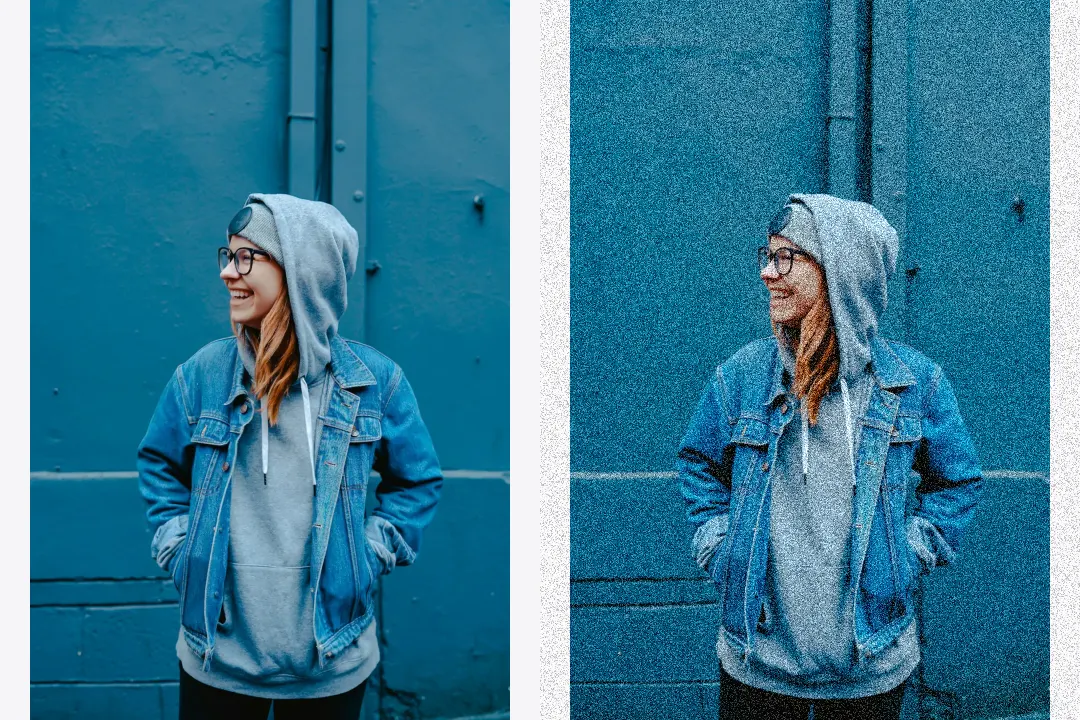
Control noise strength, grain size, and noise type.
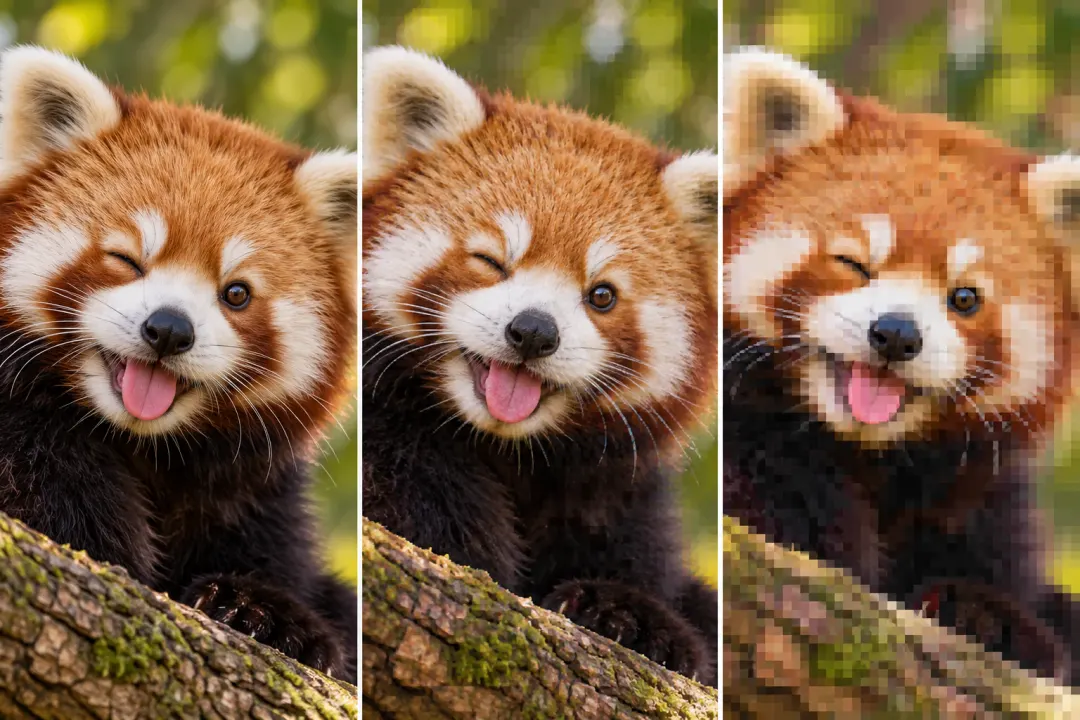
Add compression blocks, repeated saves, and color bleed.