
Upload Your Image
Choose a JPG, PNG, or WebP photo from your device.
Add noise to your image for a grainy, vintage, or deliberately low-quality look. Choose a noise type, adjust its intensity, and download your edited photo.
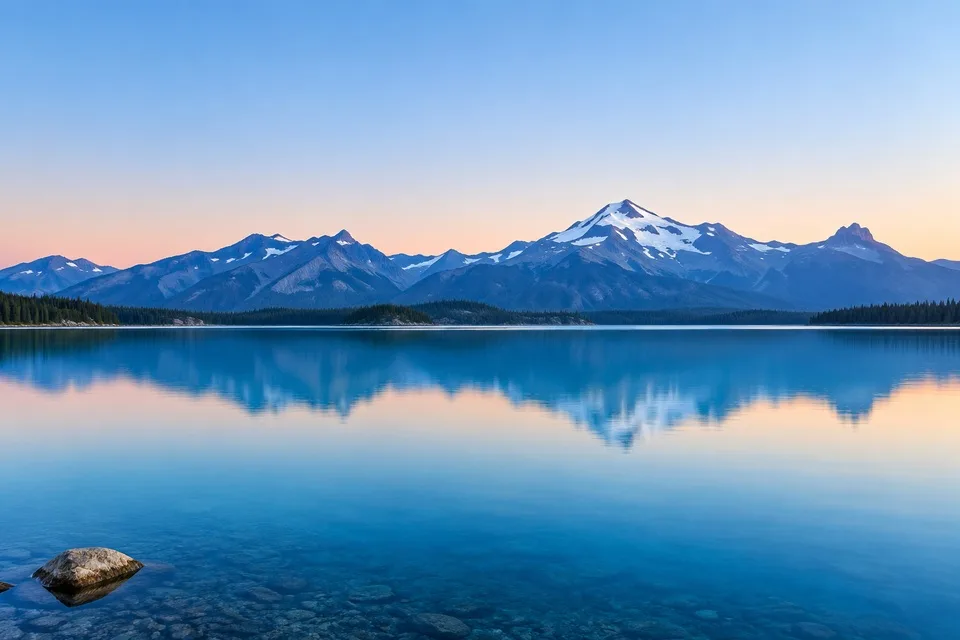
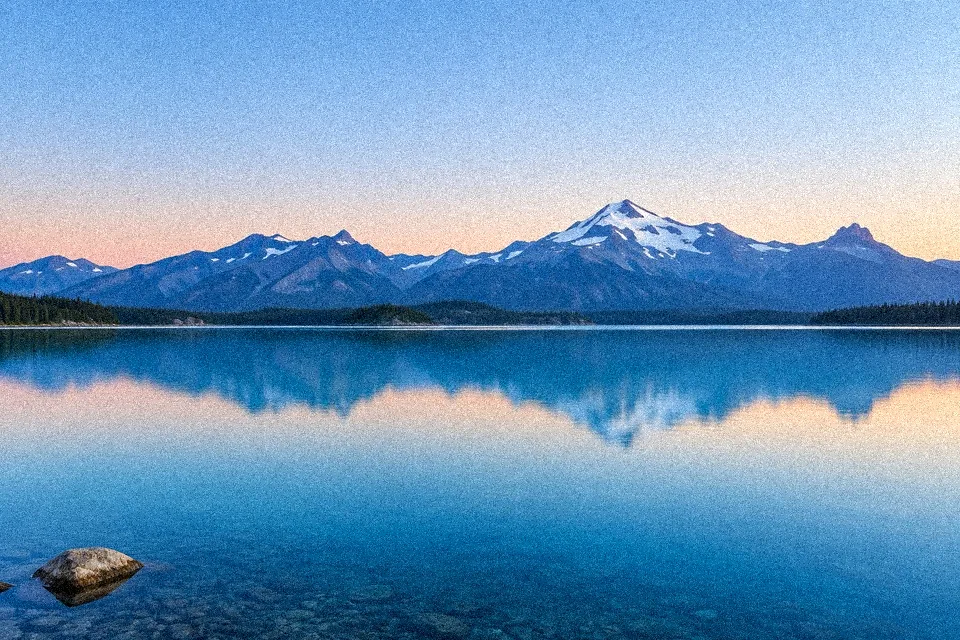
JPG, PNG, WebP · Up to 20 MB / 80 MP
Processed in your browser — your image never leaves your device.
Edited images use a working copy up to 4000 px / 6 MP; smaller images are never enlarged. PNG keeps transparency; JPG uses white behind it.
Give any photo a custom noise effect in three simple steps. Upload your image, fine-tune the texture, and save the result.
Choose a JPG, PNG, or WebP photo from your device.
Select a noise type and adjust the Amount and Strength sliders. Adjust Grain Size from 1–5 px. Open Fine-tune strength for the Strength slider, and hold Compare to see the original.
Save your edited image as a PNG or JPG, ready to share or use in your designs.
Different noise types create different textures, from subtle black-and-white grain to colorful digital interference. Choose the effect that works best with your image.
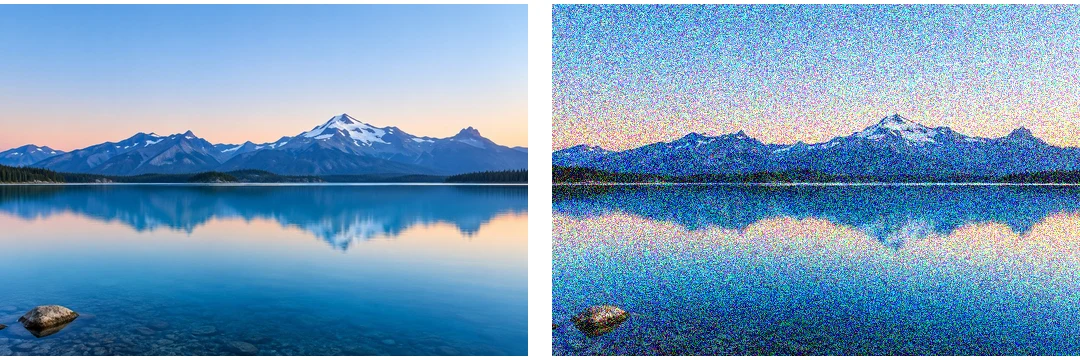
Scatter random colored pixels across your photo for a bold digital look. Try it on Y2K edits, glitch-inspired graphics, and experimental artwork.
Try Color Noise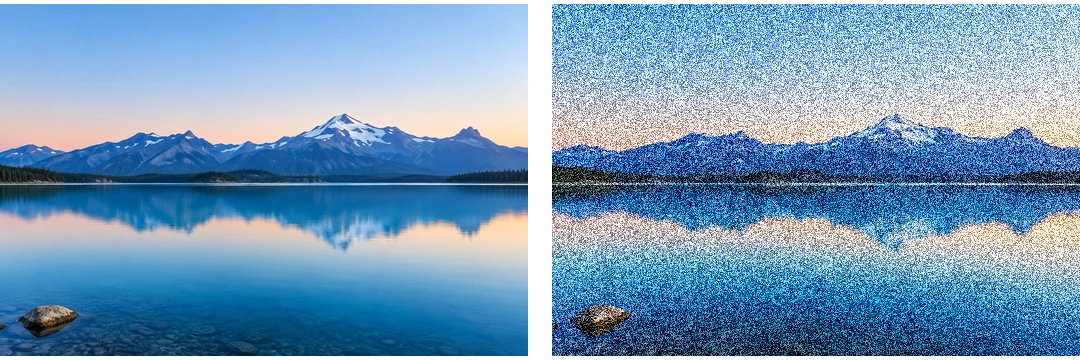
Add black-and-white speckles without introducing colorful artifacts. A great choice for portraits, street photography, and classic grainy photo effects.
Try Monochrome Noise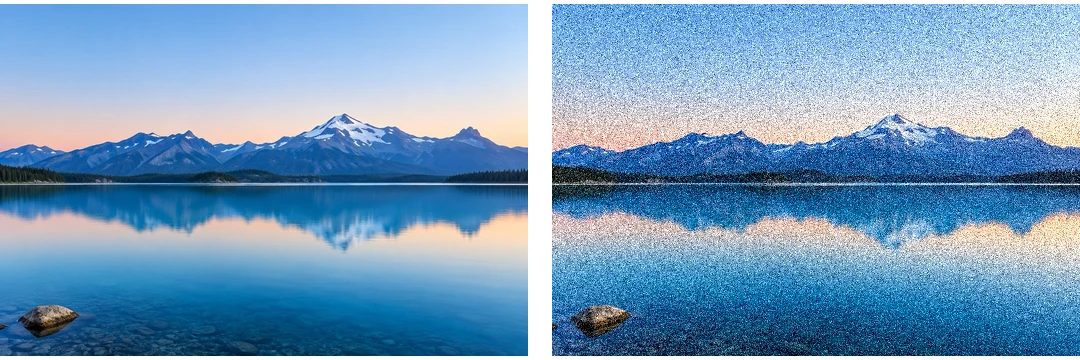
Apply fine, randomly distributed brightness variations for a more natural-looking texture. Use a light setting to soften overly smooth images or increase the strength for a rougher finish. Gaussian changes brightness only in this tool; it does not blur your image.
Try Gaussian NoiseNoise can give digital photos more character, add texture to flat designs, or help disguise unwanted color banding. Explore six ways to use image noise in your creative projects.
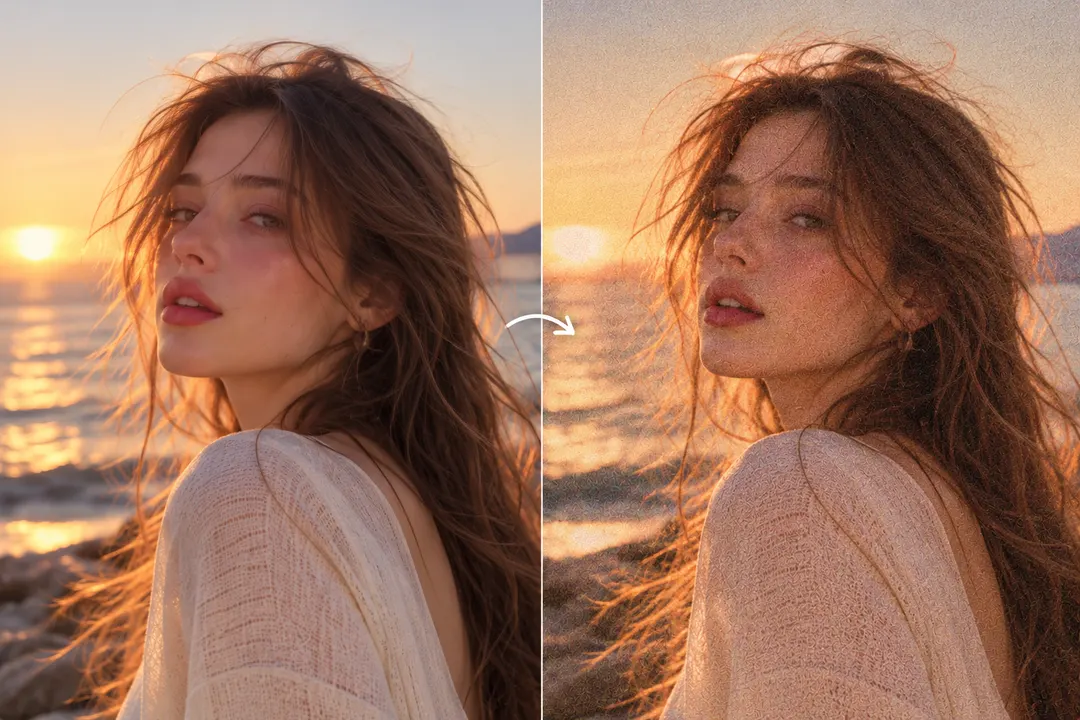
Give smooth digital portraits a subtle film-inspired texture while keeping facial details visible.
Suggested preset: Light Grain
Try this look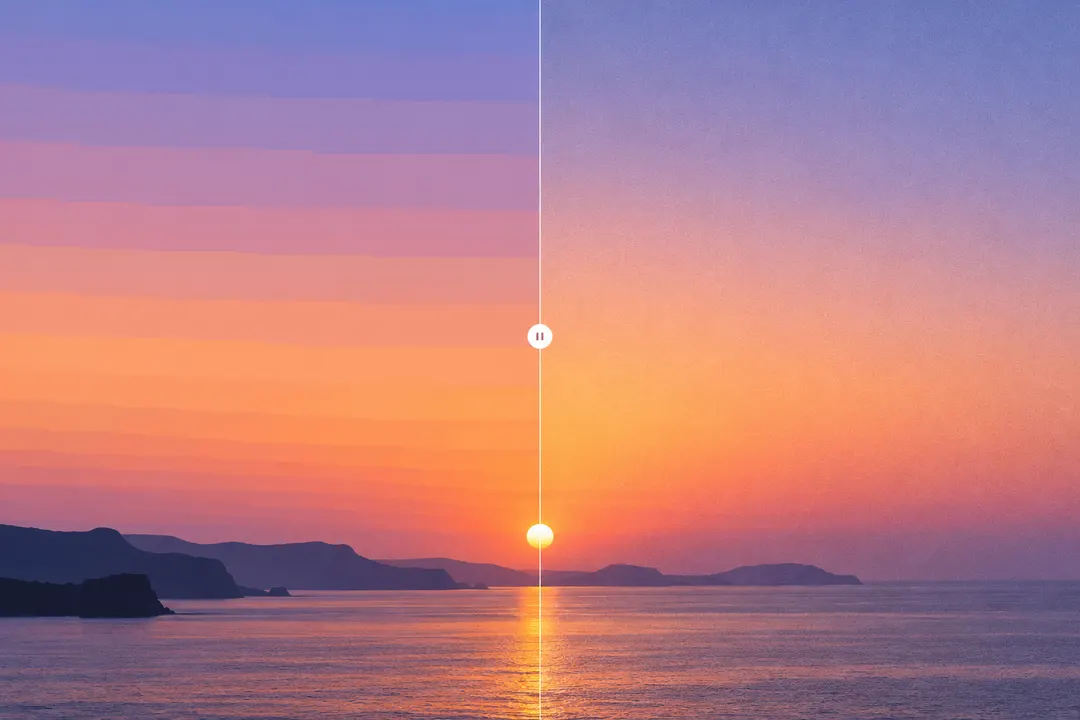
A light layer of noise can make color bands in skies, shadows, and gradients less noticeable. It does not restore missing tones or guarantee a complete repair.
Suggested preset: Light Grain
Try this look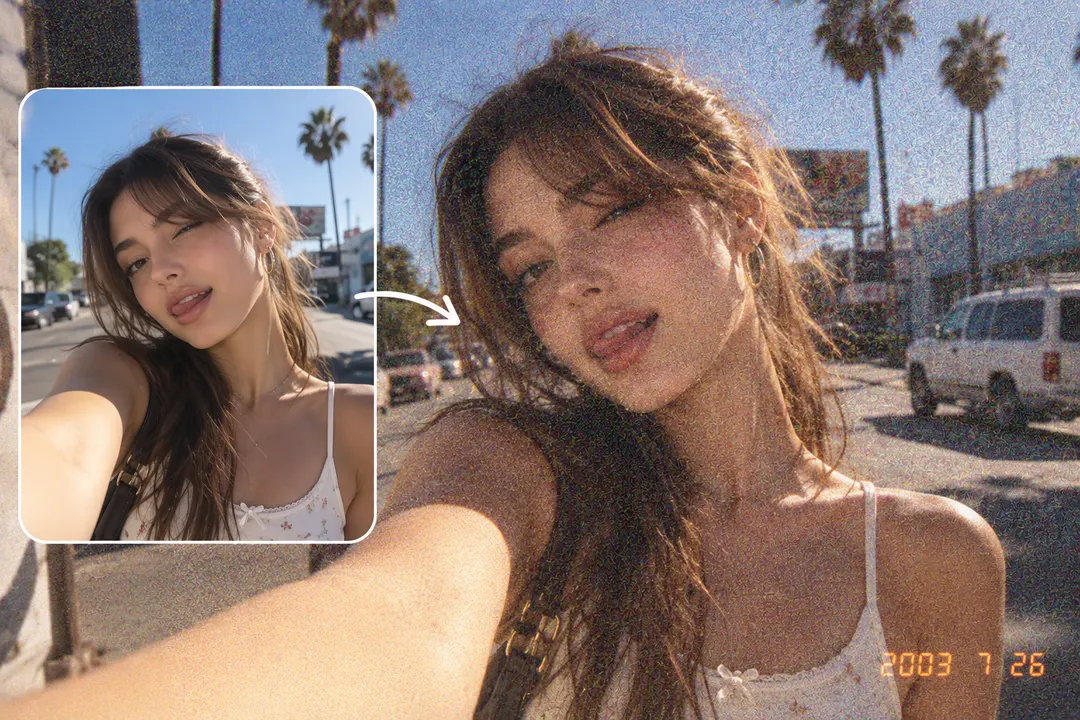
Recreate the rough, noisy appearance of early digital cameras and nostalgic phone photos.
Suggested preset: Heavy Noise
Try this look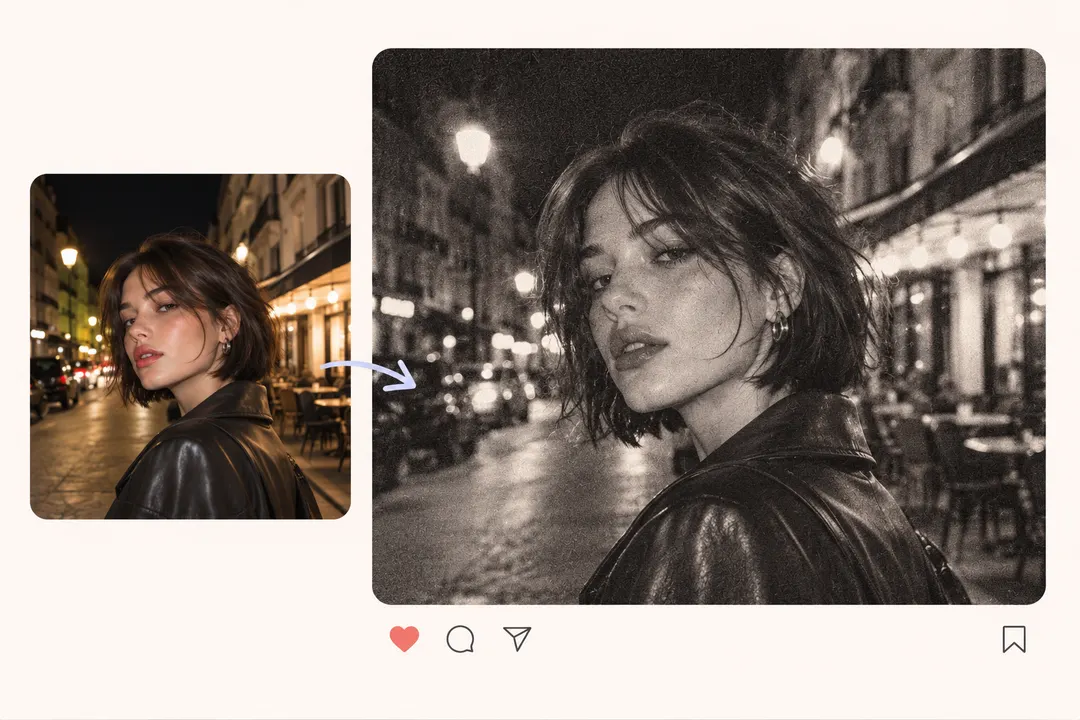
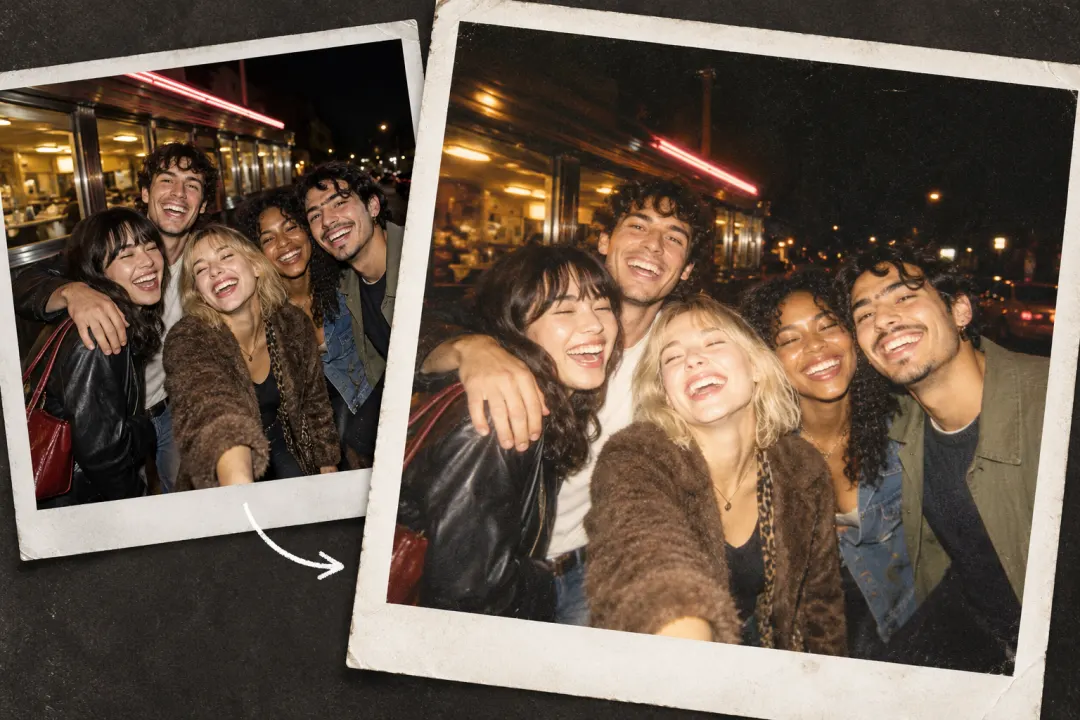
Give selfies, photo dumps, and moodboards a raw, grainy finish that feels intentionally imperfect.
Suggested preset: Monochrome
Try this look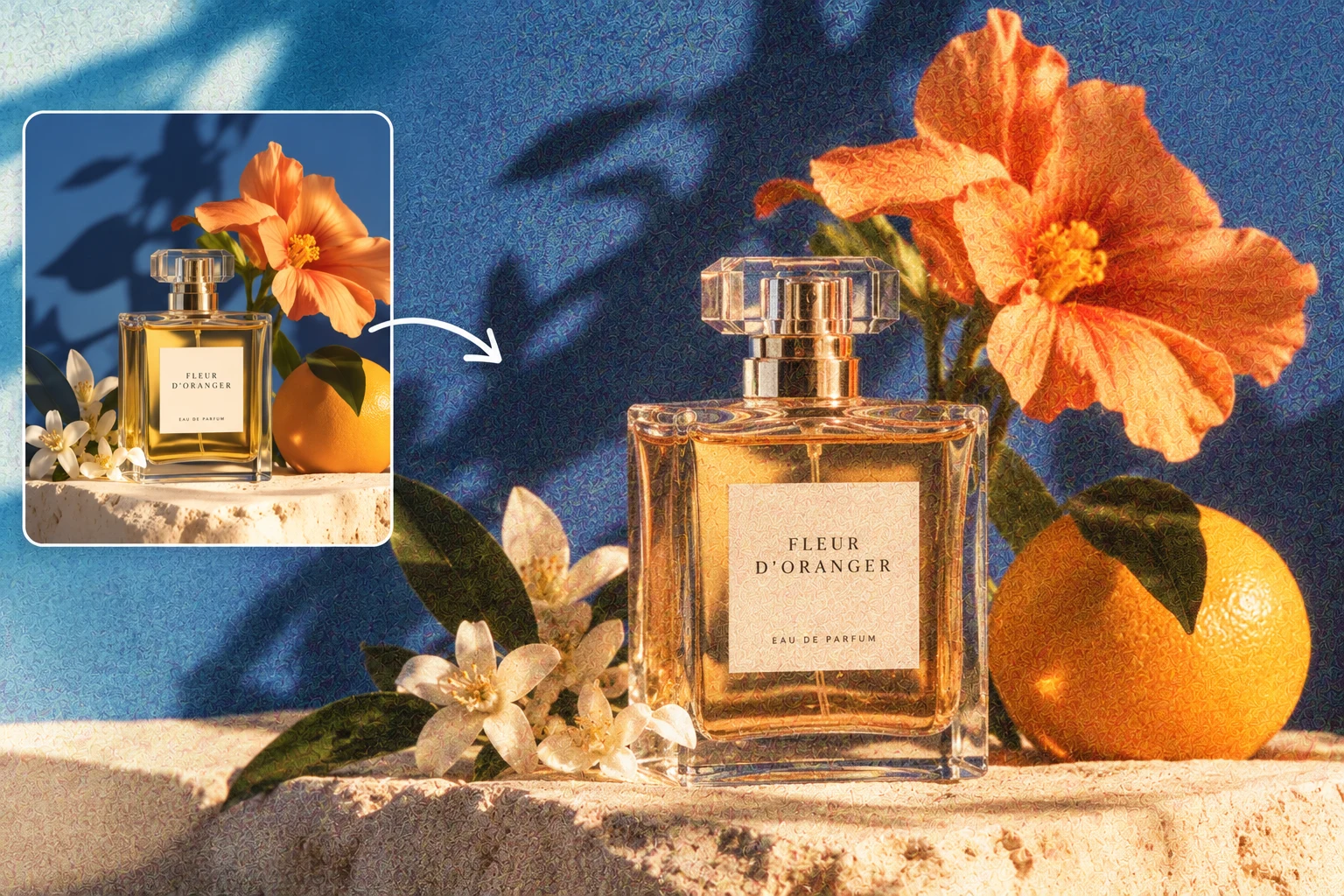
Add visible texture to flat colors, digital posters, and graphic design backgrounds.
Suggested preset: Heavy Noise
Try this look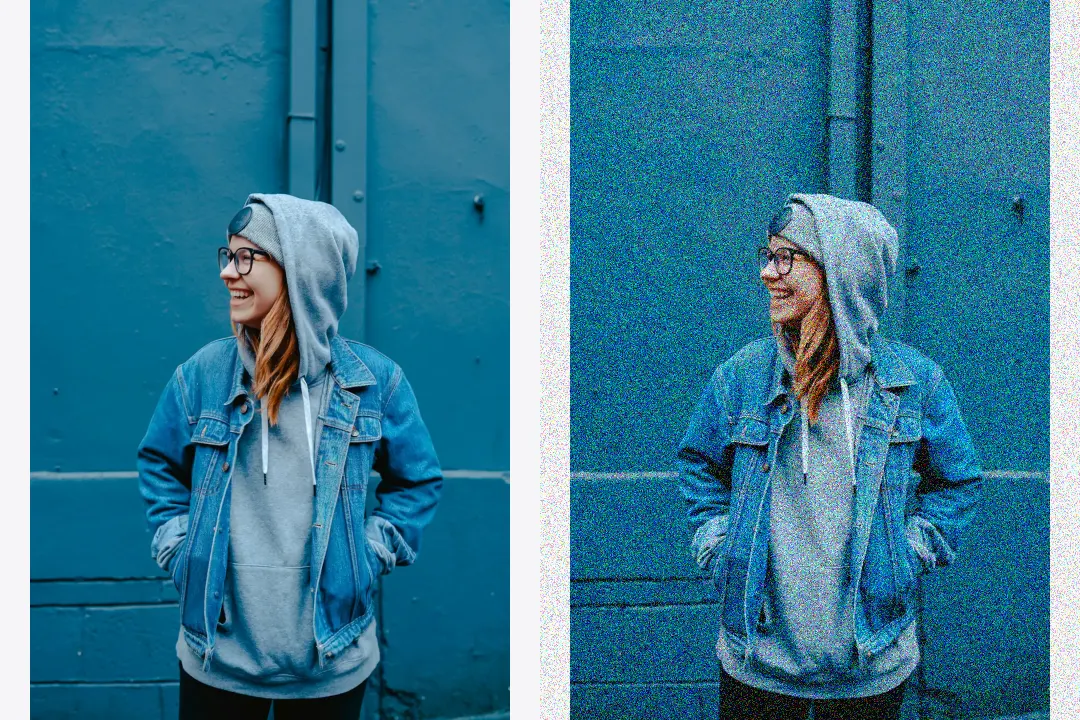
Start with heavy noise here, then use the JPEG tool to add compression damage. There is no combined compression preset in this noise editor.
The amount and strength of image noise can completely change a photo's mood. Keep the grain subtle for a film-inspired finish, or turn it up for a rough, lo-fi aesthetic.
Grain Size controls the size of each noise cell from 1–5 px. Amount controls coverage; Strength controls how strongly those pixels change.
Adjust NoiseAdd a delicate layer of texture while keeping facial details and image clarity visible. Ideal for vintage portraits, film-inspired photography, and softly textured backgrounds.
Increase the density and intensity of noise for a visibly distressed image. Try it on underground posters, Y2K graphics, and deliberately low-quality edits.
Upload your image, choose a noise type, and adjust the Amount and Strength sliders. Preview the result and download your edited photo. Strength is available under Fine-tune strength.
Start with Light Grain or Monochrome and gradually increase the intensity. A lighter setting adds texture while keeping the original image recognizable.
Monochrome noise describes black-and-white or brightness-only variations. Gaussian noise describes how the random noise values are distributed. A noise effect can be both Gaussian and monochrome.
Yes. A small amount of noise can make harsh transitions between color bands less noticeable, especially in smooth gradients and skies. It may not completely repair severe banding.
Use subtle noise for portraits and natural-looking grain. Stronger settings work better for glitch art, distressed posters, and deliberately low-quality images.
Yes. This online image noise tool lets you upload a photo, choose a noise effect, and adjust its intensity directly in your browser.
Adding noise changes the visual texture of an image and can hide fine details at higher strengths. You can keep the effect subtle or make it deliberately rough, depending on the look you want.
Both create visible texture, but film grain is associated with the organic appearance of analog film. Digital noise can look finer, sharper, or more colorful, depending on the effect.
Upload your image, experiment with different noise effects, and create your own imperfect look.
Add Noise to Image
Combine small dimensions, JPEG compression, and noise in one edit.
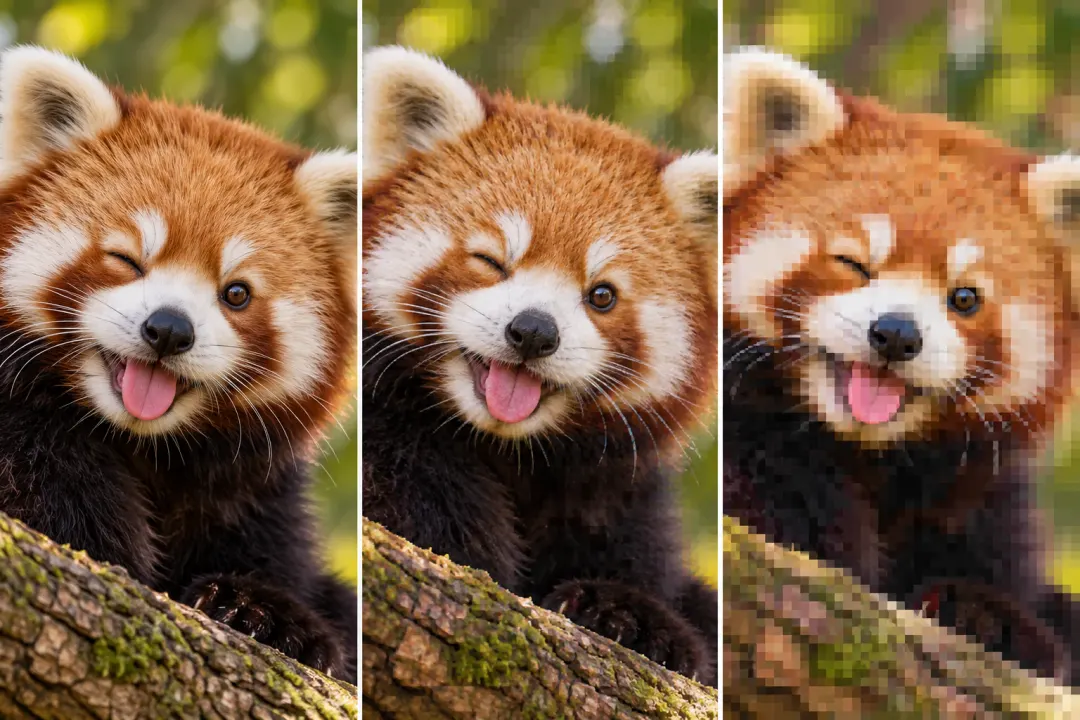
Add compression blocks, repeated saves, and color bleed.
Try digital-camera, flash, and faded-photo looks.