
Upload your image.
Drop in a JPG, PNG, or WebP, or paste it with Ctrl+V.
Add real JPEG compression artifacts to any picture. Lower the quality, re-save it again and again, and watch blocks, smudges, and color bleed creep across your image. Free, no signup, no watermark, and nothing leaves your browser.
Or click to browse · Ctrl/Cmd + V to paste
JPG, PNG, WEBP · Up to 10 MB · Paste with Ctrl+V / ⌘VYour photos stay on your device. Always.
 OriginalJPEG artifacts
Color bleed adds 2×2 chroma averaging before encoding; your browser may also subsample JPEG color when the switch is off. PNG and WebP keep the JPEG artifacts and source alpha; JPG uses white behind transparency.
Large images use a working copy up to 1600 px / 2 MP. Restore original restores the untouched original. Processing stays on your device.
Free · No signup · No watermark · Stays in your browser
Drop in a JPG, PNG, or WebP, or paste it with Ctrl+V.
Lower quality means bigger, more visible artifacts.
Raise Re-saves to stack compression on compression.
Check the blocks at 400%, then save as JPG, PNG, or WebP.
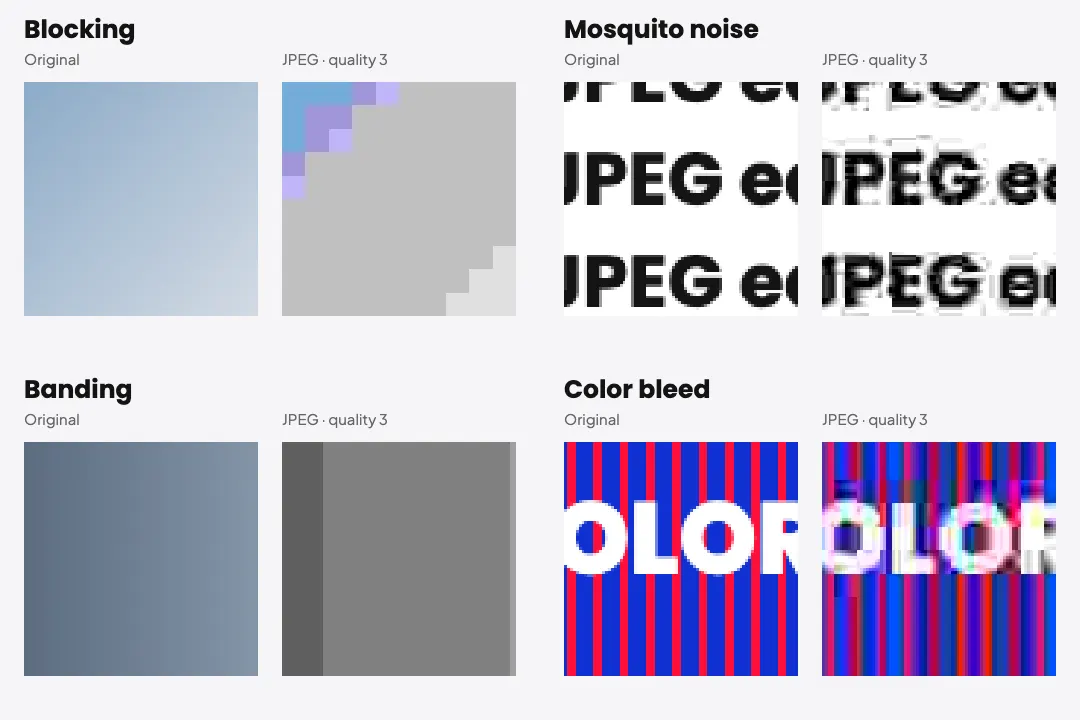
The artifacts here are not painted on top of your picture. The tool actually encodes your image as a JPEG at the quality you choose, so the blocks, blur, and color shifts are the same ones a real low quality JPEG would have. Drop the quality slider to 5 and you will see the classic 8×8 grid appear on flat skies and smooth skin.
Compress My Image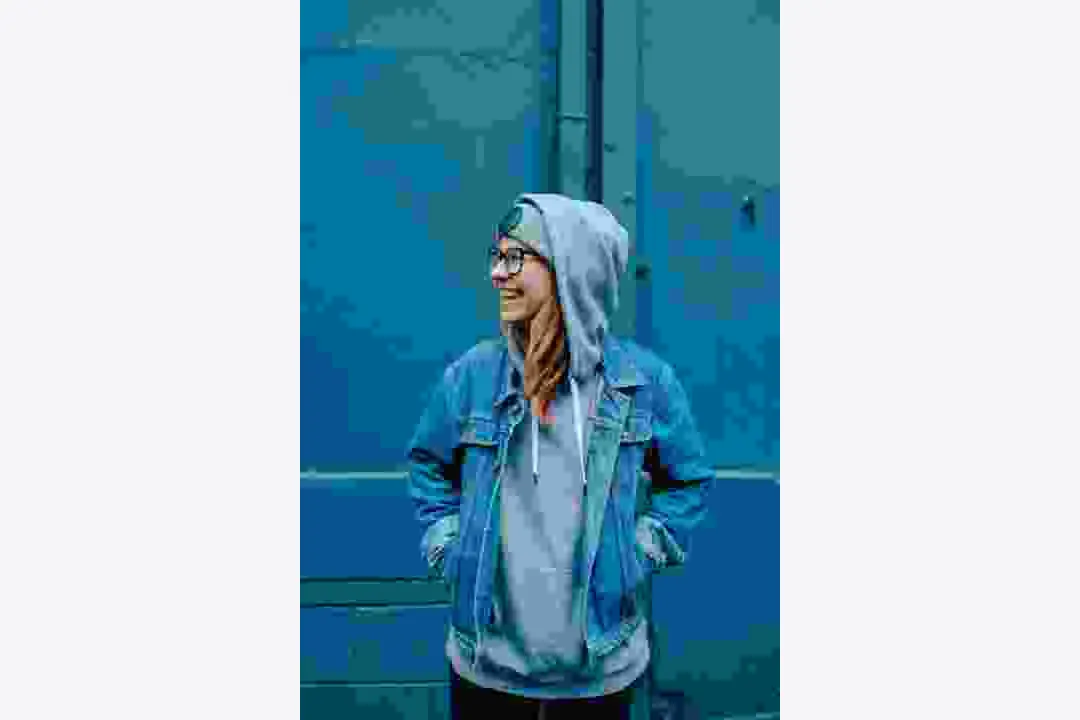
One heavy save makes blocks. Many saves make a mess. The Re-saves slider runs your image through the encoder again and again, with a tiny shift in size and position each time, so the damage keeps stacking instead of settling. Stop at 10 for a worn look or go to 100 for something that looks like it has been passed around for a decade.
Re-Save It 100 Times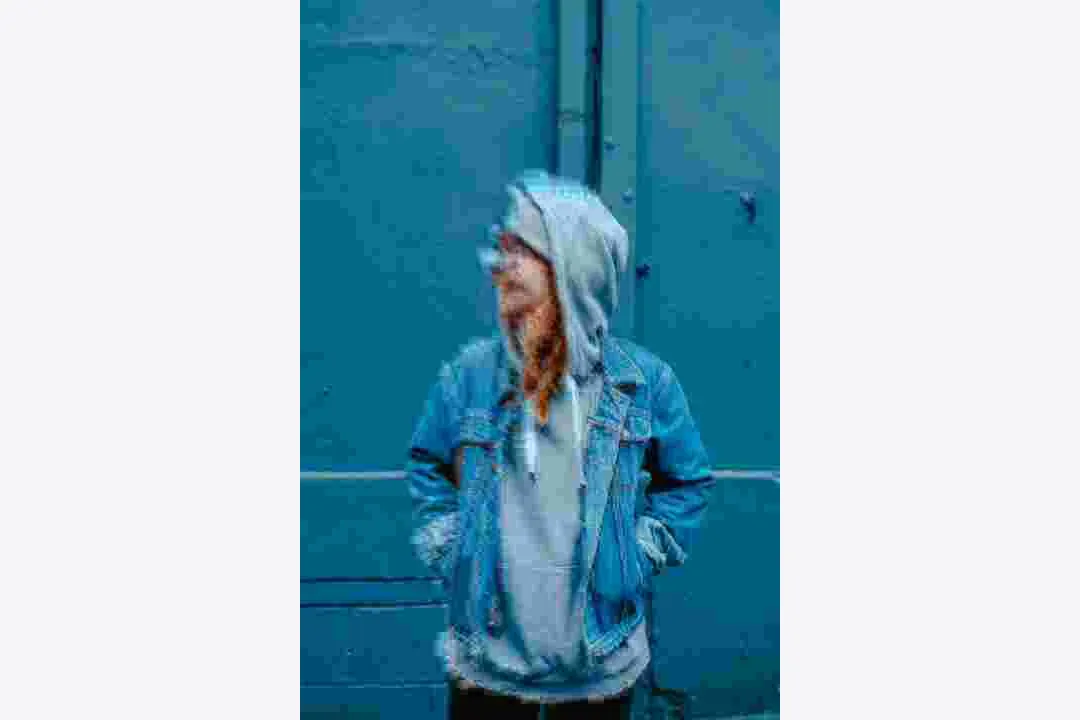
JPEG stores color at a lower detail than brightness, which is why red text on a blue background turns into a fuzzy, smeared halo. Turn on Color bleed to push that effect further. It works best on bright logos, colored text, and saturated cartoons.
Turn On Color Bleed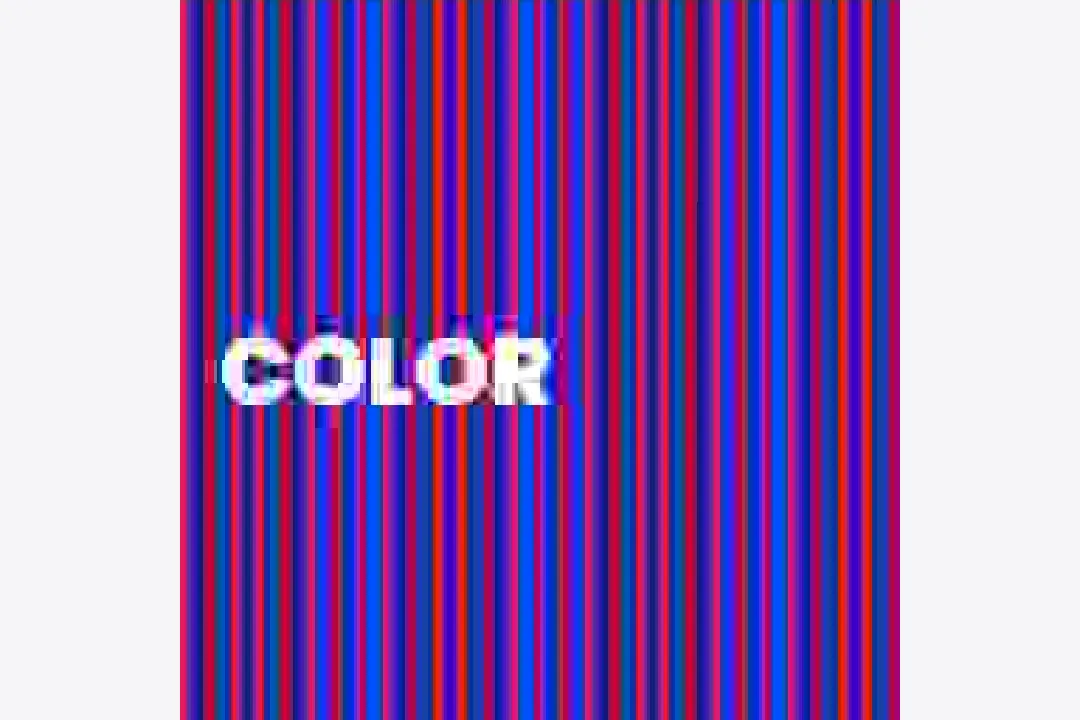
Artifacts are easy to miss at normal size. The 400% zoom lets you look at the edges and flat areas up close, so you can see exactly where the blocks, ringing, and smudges land before you download.
Zoom In
JPEG artifacts are the visible flaws left behind when a picture is saved as a JPEG with too much compression. To make the file small, JPEG splits the image into 8×8 pixel blocks and throws away fine detail in each one. At low quality, those blocks start to show as a grid. Sharp edges pick up a fuzzy ring of speckles, often called mosquito noise. Smooth gradients break into bands, and strong colors smear into their neighbors. The more often an image is re-saved as a JPEG, the worse these flaws usually get.
A meme that looks too clean feels fresh off a template site. A few rounds of heavy JPEG makes it look like it has been shared in every group chat already.
Teachers, designers, and writers explaining image compression need a clear before and after. Generate the same photo at quality 90, 40, and 5 and put them side by side.
If you are building or comparing tools that clean up compressed images, you need test images with known damage. Set the exact quality and number of re-saves so every test starts the same way.
Artists use heavy compression as a texture on purpose. Blocks and banding give digital art a broken, lo-fi feel that a regular filter cannot fake.
Compress and re-save as many images as you like, free.
Open the page and start crushing images. Nothing to sign up for.
Your artifact-filled download is just your image, with no logo on top.
The JPEG encoding happens on your own device. Nothing gets uploaded.
Every block comes from actually saving your picture as a JPEG.
See how small the JPEG gets as the quality drops.
Only partly. AI artifact removers can smooth blocks and rebuild some edges, but they guess at the missing detail. The best fix is to export again from the original, uncompressed file at a higher quality.
JPEG compresses an image in separate 8×8 pixel blocks. At low quality, each block loses most of its detail, so the edges between blocks no longer line up and you see a grid.
Usually, but less than people expect. Saving again at the same quality changes very little after the first few rounds. Editing, resizing, or saving at a different quality between saves is what makes the damage keep building.
No. PNG is lossless, so saving as PNG does not add artifacts. A PNG made from a JPEG will keep any artifacts that were already there, which is why your result still shows the blocks when you download it as PNG.
Quality settings below about 20 show obvious blocks on most photos. Below 10, flat areas like skies turn into a clear grid.
You can upload JPG, PNG, and WebP, and download as JPG, PNG, or WebP.
Use the low quality image maker instead. It mixes JPEG damage with blur, pixels, and noise for a fully worn-out picture.
Upload a picture, drop the quality, and re-save it until it looks as rough as you want. No account, no watermark, no upload.
Start Compressing
Combine small dimensions, JPEG compression, and noise in one edit.
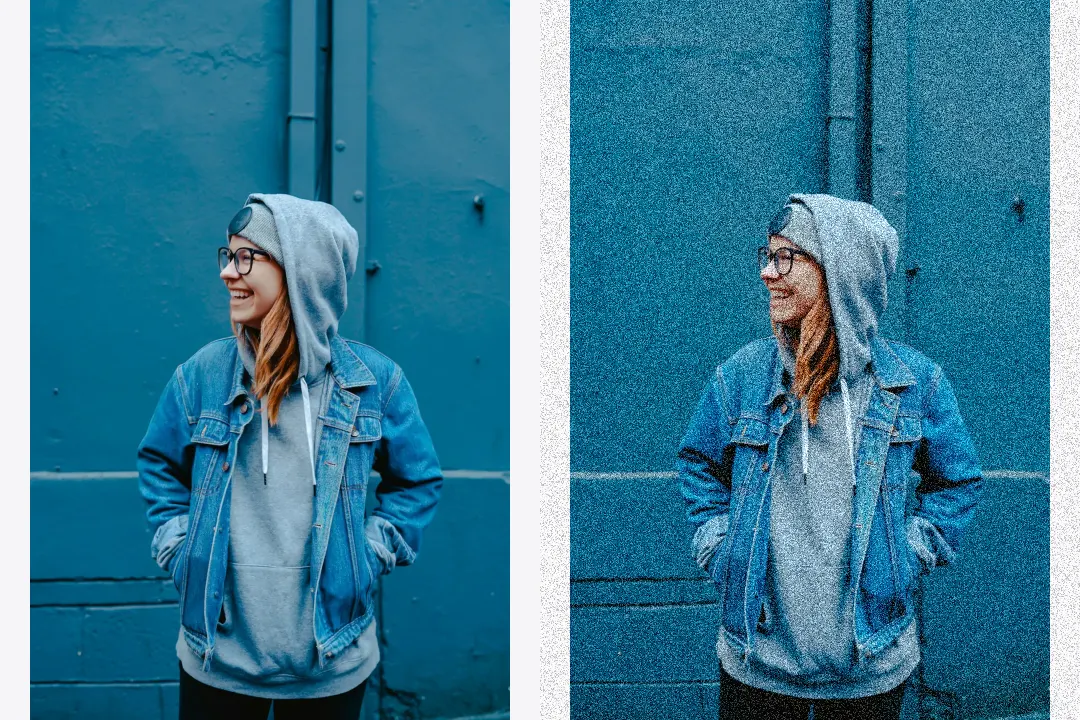
Control noise strength, grain size, and noise type.
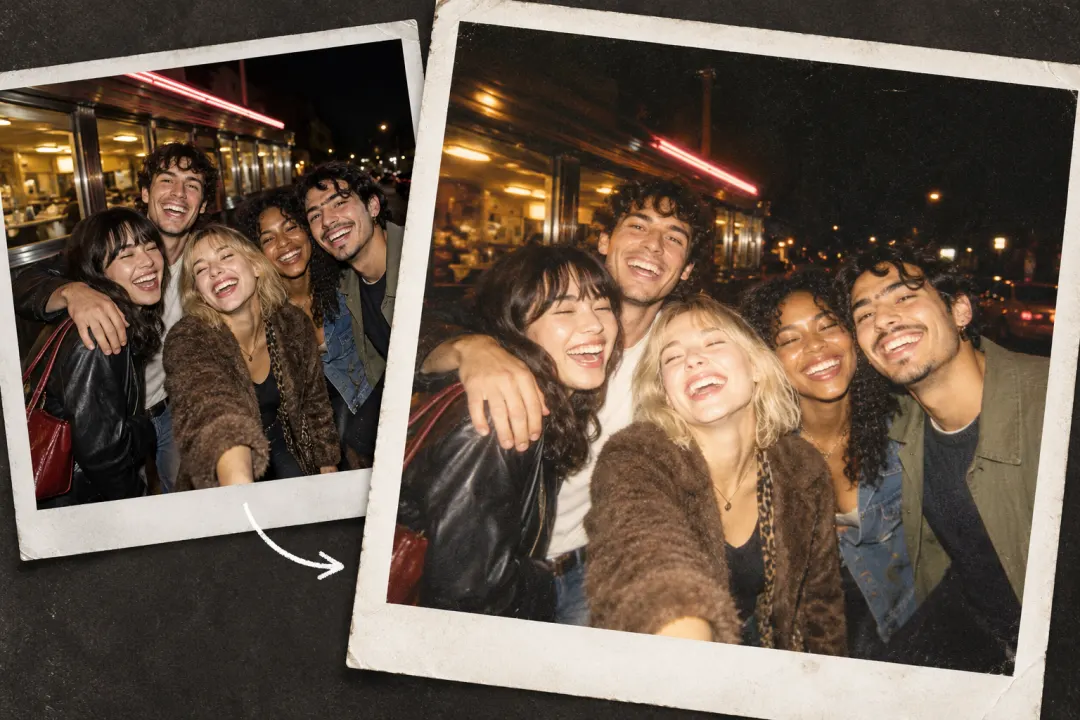
Try digital-camera, flash, and faded-photo looks.